
Has it ever happened that someone changed a bug’s priority and you only found out days later? These changes are recorded in the issue history, but keeping track of them manually requires constant attention—something that’s simply not feasible when the team is dealing with dozens of issues every day.
The smart value {{fieldChange}} takes care of that. It automatically captures the value before and after any changes made to an issue and turns that information into notifications, comments, or automated alerts. You receive this information without anyone having to open the issue history.
What is {{fieldChange}}?
When an issue is modified—such as a change in priority, status, assignee, or any other field—Jira internally logs this change. The {{fieldChange}} tag allows you to access this data directly within an automation rule.
The available smart values are:
- {{fieldChange.field}} → the name of the field that was changed
- {{fieldChange.fromString}} → the previous value (before the change)
- {{fieldChange.toString}} → the current value (after the change)
How to use it in practice
Step 1: Create the automation rule
- Go to Project settings → Automation → Create rule
- Select the “Field value changed” trigger
- Select the field you want to monitor (e.g., Priority, Status, Assignee)
Step 2: Add the action
Add a Comment, Send email, or Send Slack message action with the following content:
Field {{fieldChange.field}} changed by: {{initiator.displayName}}From: {{fieldChange.fromString}} To: {{fieldChange.toString}}Issue: {{issue.key}} - {{issue.summary}}
Real-world examples
1. Notify the team when an issue is escalated to “Highest”
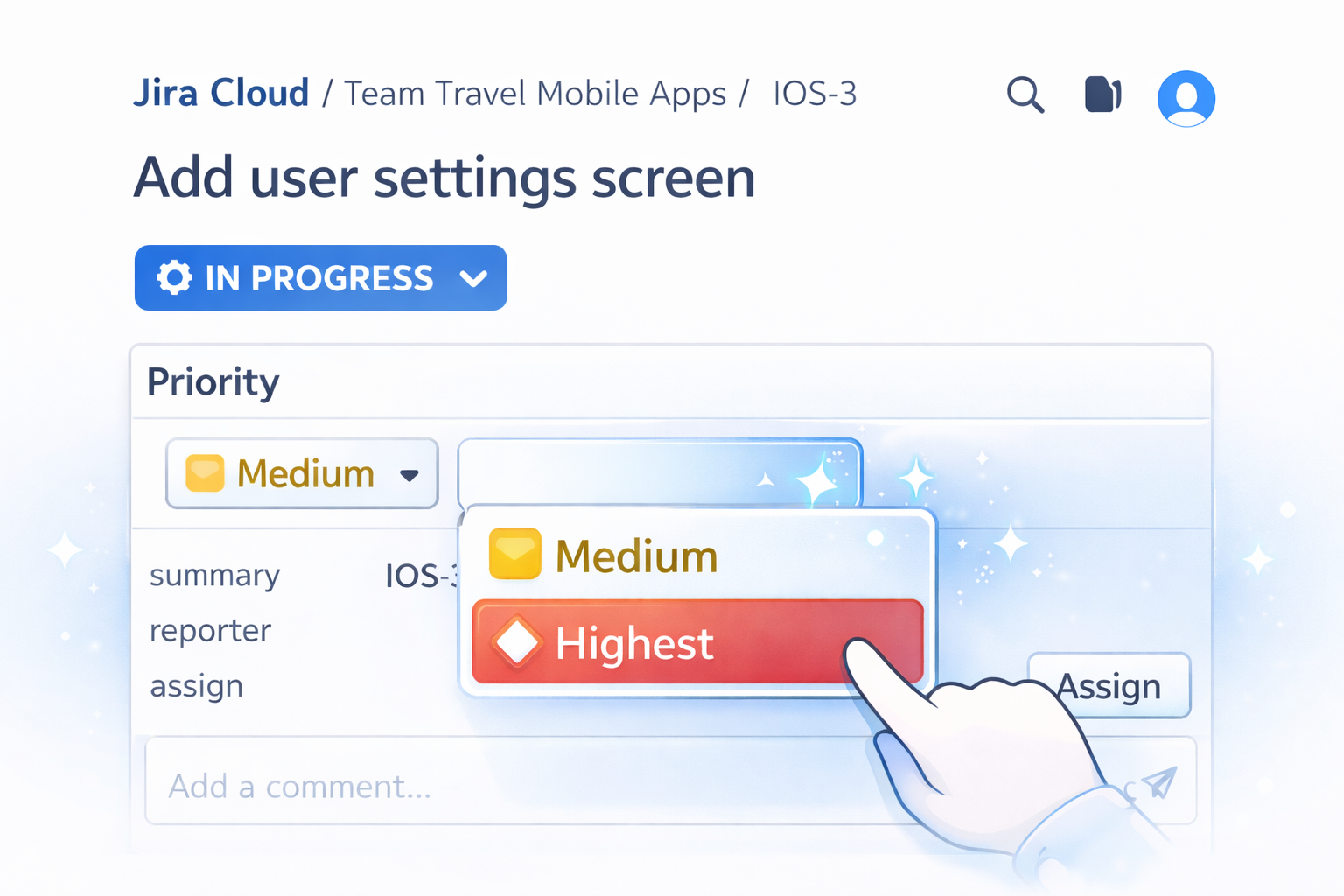
In projects with many issues, a priority change to “Highest” can go unnoticed. With this automation, the entire team is notified immediately.
Trigger: Field value changed → Priority

Condition: If {{fieldChange.toString}} equals Highest
Action (comment or Slack):
ALERT: {{issue.key}} priority changed to Highest!Previously: {{fieldChange.fromString}}Changed by: {{initiator.displayName}}
This is especially useful for teams that work with SLAs. The sooner the team knows, the faster service can begin.
2. Track agent rotations within support teams
In Service Desk operations, knowing who assigned a ticket to whom is essential for tracking handoffs, identifying bottlenecks, and ensuring that no items get lost between agents.
Trigger: Field value changed → Assignee
Action:
Assignee changed: {{fieldChange.fromString}} → {{fieldChange.toString}}Changed by: {{initiator.displayName}}Issue: {{issue.key}}
This allows the team lead to track ticket activity without having to open each issue individually.
3. Monitor status changes
When an item’s status changes, it can be helpful to log the transition to keep track of the workflow:
Trigger: Field value changed → Action status
:
Status changed: {{fieldChange.fromString}} → {{fieldChange.toString}}Issue: {{issue.key}} - {{issue.summary}}Moved by: {{initiator.displayName}}
Tip: If you want to trigger a notification only when the item changes to a specific status (such as “Done” or “Blocked”), add a Condition that checks whether {{fieldChange.toString}} matches the desired status.
Where does {{fieldChange}} work?
- Automatic comments
- Emails and notifications
- Messages on Slack or Microsoft Teams
- Log actions (for debugging)
- Any action that accepts text within an automation rule
Important: {{fieldChange}} only works with the “Field value changed” trigger. With other triggers, it does not return any data.
Conclusion
{{fieldChange}} turns Jira automation into an active traceability tool. Instead of relying on someone to check the issue history to find out what has changed, the information is delivered automatically—in a comment, an email, or the team channel.
For support teams, project management teams, or any operation that requires real-time visibility, this makes a huge difference in day-to-day operations.
Try out this smart value in your next automation project and let me know how it went on LinkedIn. And if you’d like to see more technical content about Jira, Confluence, and JSM, follow Atlassian Lab.



Deixe uma resposta